Showing posts with label Arduino. Show all posts

Sunday, May 28, 2017

Arduino 101 - An Introduction to the Intel Curie Module Development Board

This post is about the Arduino/Genuino Board 101 - the Intel Curie Module development board. It is a not an introduction to Arduino, AKA Arduino 101.


Introduction

This post is just a quick introduction to the Arduino 101. I plan to do a couple of projects in the future involving it, and I want to document a few of the questions I had when initially considering whether or not this board will work for me. I will likely update this post with any other issues I run into. 

The Arduino 101 is very different from the classic Atmel AVR based chips the world has come to know and love. The old AVR based Arduinos (easily spotted by the plethera of low cost generics available on sites like eBay) are traditional microcontroller development boards. They are basically just microcontrollers packaged conveniently and paired with the all important Arduino IDE. While I honestly have had very little exposure to most of the vast array of new boards covering the Arduino universe these days, I can say the Arduino 101 is not your slightly-younger-self's AVR. It instead is based on the very capable Intel Curie Module and wraps it in a software architecture to give you a board that looks and feels like an Arduino Uno but performs like something else entirely. Bluetooth Low Energy (BLE) support and a built in IMU make this a very capable little board for $30. While it is being marketed as an internet of things board, I say why has no one made this into a drone yet?

Overall the Arduino 101 looks like a very powerful board for anyone with the willingness to dig into the datasheets. As it is further developed, I have no doubt it will become a hallmark of the new multi-core (non-AVR) Arduino family. 

Questions Answered

What IMU is in the Arduino 101?


Is there an included IMU sensor fusion algorithm?

It does not appear that there is any sort of sensor fusion capability exposed at the Arduino level at the time of this writing. However, the 32 MHz processor is more than capable of running the Madgwick algorithm, and there is a library ready to go out of the box. I imagine it is only a matter of time before it or some Kalman filter variant is included in the Curie download or sensor fusion is implemented at a lower level. See the visualization tutorial.


Troubleshooting

Uploading Script Problem

When I first tried to use the Arduino 101 I got the "ERROR: Timed out waiting for Arduino 101 on COM##" error. No amount of  pressing the Master Reset would fix it. I was running Curie Core 2.0.2 on Windows 7, so I tried reverting to 1.0.7. Then I tried running as an administrator. Eventually I tried changing USB ports. My computer has a 2.0 port as well as a 3.0. When I changed to the USB 2.0 it worked. This could very well mean that I simply have a flaky USB port. I've certainly triggered the fuse on it a few times. However, I mention it here simply in case someone else has this problem. In my case, switching to my USB 2.0 port fixed it.

Matthew


Saturday, November 26, 2016

Arduino Interrupt Stepper Driver - CTC Mode

Introduction to the Problem

This tutorial will show how to drive a Pololu style stepper (A4988) driver using a timer interrupt. This method is non blocking, efficient, and as far as I know is pretty much what most 3D printer firmwares use.

The idea is this. A pololu style stepper driver (the kind that plugs into the RAMPS board) only requires two inputs from the Arduino. One is a direction pin. The other is a pulse train. One rising edge equals one step (or micro step, depending on how the set pins are wired). Most people when they first get going with steppers probably do one of two things. 1) They use some library that does all this for them (I don't know if one exists, but maybe it does) or 2) They just throw a digitalWrite in the loop() and pulse it that way. The problem with that is that it is dependent on the speed with which the loop runs. Enter Timer Interrupts

Interrupts - Conceptually

The timer interrupt is a low level feature of the ATmega family. It is not something that is provided by Arduino, and in fact functions such as millis() and delay() are based on them. I have always been a bit surprised that Arduino does not break timer interrupts out a little. They are really pretty easy to use but are very powerful. I am not going to go into great detail on the specifics of timer interrupts because there are other sources out there. The best of which is the ATmega datasheet.

The idea is this - the ATmega CPU is sitting there executing your code, pulling commands off of the stack. It does this in the same order each time. On another part of the chip there is this thing called a timer. It is counting up from 0 to some value over and over again incrementing at a set frequency. When it reaches the target value it sets a flag and goes back to 0. When that flag is set, the ATmega chip sees it and says, "it is time to execute a special piece of code. Drop everything and do it." What ever it was doing before goes back on the stack and what you put in the "interrupt service routine (ISR)" gets executed. Then it goes back to its normal business. We want to put our "pulse stepper driver" code in the ISR.

There are a couple of dangers with this, but I will just leave you with this. Keep the ISR short. Don't do any serial prints or heavy computations (floating point math) in there. Calculate those ahead of time and pull them in as compile time constants ideally.

Solving the Problem

Now I actually came up with 3 ways of solving this problem
  1. Using a fixed rate Timer Interrupt and only pulsing on some of the ISRs
  2. Using CTC mode and pulsing inside the ISR
  3. Using a special PWM mode 
This tutorial covers method 2. It uses Timer5 in Clear Timer on Compare (CTC) Mode. This allows you to call an interrupt at whatever frequency you want. If you're familiar with timer interrupts  the picture below might help. Again, I will not take the time to go into that much detail on that in this post. For now, I will point you to the ATMega datasheet which covers all of this stuff and THIS post by maxembedded.
CTC Mode - From ATMega Datasheet

Another important point is that I use direct port manipulation in the interrupt. I will not cover that here, but there are numerous examples online of how that works in addition to the ATMega datasheet. HERE is one example. I use direct port manipulation because it is much faster. As stated above, the ISR should execute as quickly as possible.

The Practical Stuff

Copy the code below. Wire it according to pins set in the code. Change the pulses per second calculation based on your setup (change it in the ISR Location calculation too). Set targSpeed in mm/s. Then set the Z_DIR_PIN and DirFlag based on the direction you want to drive. Test your code.

I hope this is helpful to someone. If it is, please let me know in the comments. If anyone that reads this has any insight into libraries available or other methods, comment those too. Good luck!

-Matthew


/*
 * Drives stepper using a pololu stepper driver and timer interrupts
 * 
 * This example uses pinouts associated with RAMPS 1.4 z-axis
 * 
 * Last edited by Matthew 11/14/2016 Arduino 1.6.7
 *                projectsfromtech.blogspot.com
 * TRCCR1A/B               
 * COM1A = 0b00 - disconnect OCR
 * WGM1 = 0b0100 - Fast PWM with the top value at compare match
 * CS1  = 0b001 - no prescaling               
 * ICNC1 = ICES = 0b0 - doesn't apply
 * 
 * */

const byte Z_STEP_PIN    =     46;
const byte Z_DIR_PIN     =     48;
const byte Z_ENABLE_PIN  =     62;  //62

//Interrupt Variables
volatile uint16_t PulseOnISRNum = 0;
volatile uint16_t isrSincePulse = 0;

//============================================================================
void setup() {
  Serial.begin(115200);

  pinMode(Z_STEP_PIN, OUTPUT);
  pinMode(Z_ENABLE_PIN,OUTPUT);
  pinMode(Z_DIR_PIN, OUTPUT);

  //setup Timer1
  TCCR5A = 0b00000000;
  TCCR5B = 0b00001001;
  TIMSK5 |= 0b00000010;       //set for output compare interrupt
  sei();                      //enables interrups. Use cli() to turn them off
}

float targSpeed = 2.5;       // mm/s
float PPS = 0;               // Pulses Per Second
int8_t DirFlag = 1;          // Direction flag. Set this to keep track of location
int32_t Location = 0;        // nanometers (m*10^-9) scaled by 10^-6 to avoid floating point math in interrupt

long clk = micros();


//============================================================================
void loop() {
  //Set Direction
  digitalWrite(Z_DIR_PIN, LOW);     // Low is forward   (based on setup)
  DirFlag = 1;
//  digitalWrite(Z_DIR_PIN,HIGH);       // High is backward (based on setup)
//  DirFlag = -1;
  digitalWrite(Z_ENABLE_PIN , LOW);   // Active Low

  // Set Speed - these calculation are based on your harware setup
  //           - Mine are for 1/16 microstepping and an m5 threaded rod driving the stage
  //------------------------
  for(float ind = 0 ; ind <3.0 ; ind = ind+0.0005)
  {
  targSpeed = ind;            // mm/s
  PPS = targSpeed * 4000;     //Pulses/s
  OCR5A = 16000000/PPS - 1;   //equation from pg 146 in datasheet- removed factor of 2 b/c I am manually pulsing in an interrupt every time
  Serial.print("Speed (mm/s): ");
  Serial.print(targSpeed);
  Serial.print("  Loop Time (ms): ");
  Serial.print(micros()-clk);
  Serial.print("  Location (mm): ");
  Serial.println(Location/1000000.);
  clk=micros();
  // Input other code here! Stepper driver will run even if this code is blocking!


}}

//================================================================================


ISR(TIMER5_COMPA_vect) {
//    digitalWrite(46, HIGH);       // Driver only looks for rising edge
//    digitalWrite(46, LOW);        //  DigitalWrite executes in 16 us  
    //Generate Rising Edge
    PORTL =  PORTL |= 0b00001000;   //Direct Port manipulation executes in 450 ns  => 16x faster!
    PORTL =  PORTL &= 0b11110111;
    Location = Location + 250 * DirFlag ;  //Updates Location (based on 4000 Pulses/mm)
}
    

Saturday, December 27, 2014

Linearizing the Sharp IR Ranger (2YOA21) with an Arduino

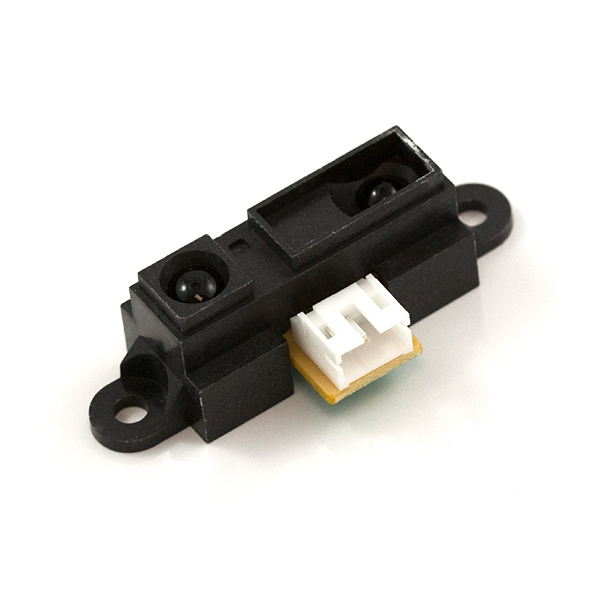
Today I will be linearizing a Sharp IR Ranger. More specifically, I will be using the Sharp 2YOA21 F 04.


First, a quick word on why we would want to do this. The Sharp ir rangers are a very effective means of measuring distance. While ultrasonic sensors (for more about those see the Sensors label) can be fooled by textures and echos, ir sensors are more susceptible to interference from outside light sources and changes in material reflectivity. Therefore,  if a cheap measurement system is required in a varying environment (eg, a mobile robot) a combination of ultrasonic rangers and ir rangers can be quite effective.

If you have found this page, you probably already know this, but I will state it anyway. Sharp ir sensors have an analog output. However, the analog value does not have a linear relationship to distance. In this exercise we will find the function that does relate the two and use that to take an analog value and convert it to a distance.

Wiring

As stated above, the sensor has an analog output. Connect the red lead to +5V, black lead to GND, and yellow lead to A0.

Aquire Data


I used a simple sketch that took the average of 5 values and printed it to the screen. I then manually copied it into an excel spreadsheet along with the measured distance value. 


Fit Data

Once you have acquired the data, plot it. Some points will most likely fall outside of the trend. Exclude those points and fit the rest. My fit was Value = 1893.9*Distance^-0.92. 


Use Equation

Solving the equation I got above for Distance gets me this, Distance = (1893.9*Value) ^-1.087.

This is something we can plug into Arduino code. At this point it is only right to note that the method I am using will involve floating point math. There are methods that avoid that. If processing power is at a premium, you might want to check those out.

The important piece of code looks like this:


  float Distance = pow((sensorValue / 1893.9), -1.087); 

If you want the whole thing, you can download my code HERE.

That's all I have. I hope it was useful.

-Matthew


Saturday, March 1, 2014

Arduino Shift Register Stepper Motor Controller

This is my first "reader requested" post. A reader sent me an email asking me to do a post about controlling a stepper motor using a shift register, and here it is. In this post I will specifically discuss controlling a 28BYJ-48 stepper motor with a 74HC595 shift register, ULN2003, and Arduino.

First of all, I need to explain what a shift register is. Rather than doing that however, I will differ you to THIS page. It does an excellent job of introducing shift registers and provides some really easy to use sample Arduino code. My code is based off of the functions on that page. I will be using a 74HC595 shift register. I chose it because it is pretty common. I got mine off of eBay, but you can buy them at various vendors.

Second, I should point you to some information on the stepper motor I will be using. It is a 28BYJ-48 stepper motor. It is the same one I used in the two posts(Arduino Control and ATtiny Control). If you need it, those two pages have links to some good reference material.

Third, like in the other cases, I will be using a ULN2003 to drive the stepper. This is pretty common with this board. However, this time I just wired it up on my breadboard rather than using the control board that came with my stepper. I did this because I intended to solder together a whole control board. In the end, I decided I didn't have a need for it at the moment and just left it breadboarded. I can always solder it later.


Now, wiring this project has a few more wires than some of my others, so I threw out all the stops and made a Fritzing schematic. When you look at it, wiring is not terribly complicated; the wires just get crossed easily.


So here is what is going on. The Arduino is controlling the shift register like described in the link I provided above. The shift register outputs are fed into the ULN2003. The ULN2003 acts as a switch and allows the stepper to draw the current that it needs to operate.

One thing you may wish to change, in this diagram I have the stepper being driven by the 5V from the Arduino. It may be wise to drive it from an external 5V source if you are doing more than one. Also, the colors on the stepper (or even the order of the wires) can vary from vendor to vendor. Basically, if the stepper just sits there and grinds against itself, switch the wires.

Another thing that confused me for a little while, the ULN2003 sinks current (as opposed to sourcing current). That is, it allows the output to be a path to ground if the input is HIGH. If you wire the stepper like shown above it should work. The trouble comes when people like me want to test it with an LED before connecting the stepper. I connected the positive end to the ULN2003 and the negative to ground. Eventually, I realized my mistake and switched it. Long story short, to test with an LED, put the "negative" end on the ULN2003 output and the "positive" on 5V.

Here is my setup for this project. The sketch I used is an adaption of one of the sketches from my previous posts. Basically, where there was a digitalWrite I put a setRegisterPin. A potentiometer controls the speed. Get my code HERE

The motor did not turn very quickly (around 10 seconds a revolution), I suppose I shouldn't have expected much more considering all the delays the shift register puts into the system, but if you ever needed to control a large number of stepper motors on only a few pins maybe this would be an option. If you do plan on that, you might note that the ULN2003 only has 7 inputs/outputs, so be sure to get the right number of parts.


Also, it  appears that this sketch could very easily be wrapped into a library. Perhaps the stepper library could be edited to utilize a shift register. Regardless, that is beyond the scope of this post. I leave that to the reader (though feel free to tell us about it in comments).

Hopefully this is useful to someone. If anyone else has suggestions for posts, let me know. The reader requested label is looking pretty lonely.

-Matthew


Monday, February 3, 2014

DHT11 with Adafruit Library and Arduino Mega 2560

In this post I will be playing with the DHT11 Temperature and Humidity Sensor with my Arduino Mega 2560. While a DHT22 could also be used, I used a DHT11 mostly because it and it was cheap. I think I got mine for around a dollar. They can also be found it premade breakouts, but there really isn't much to them. As you can tell from the picture in the link, the breakout merely removes the extra pin and adds the pull-up resistor and a decoupling capacitor.

Once you decide on which sensor to buy, you will be faced with yet another choice. What library should I use? There are approximately a lot of them out there. I chose the Adafruit DHT library found HERE. It worked for me (and supports multiple sensors), so I saw little reason to pursue any of the other libraries.
This does NOT work

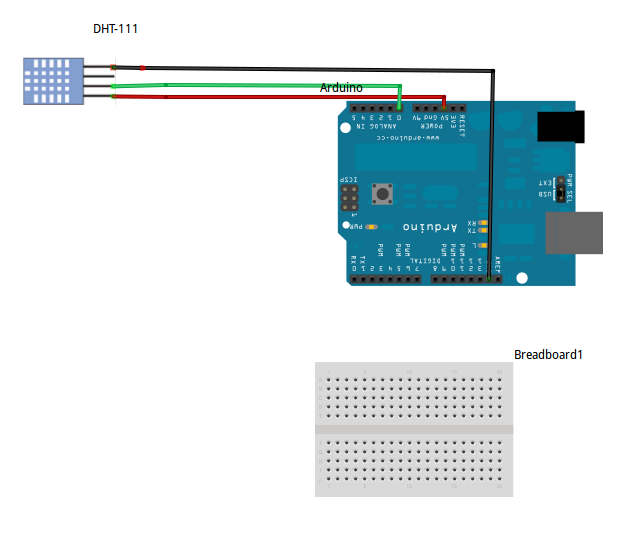
Now when I bought my DHT11 from Ebay, a picture like this was on the listing. Quite frankly, I don't understand what this is getting at. It doesn't work. While I can't vouch for the rest of the world, my sensor is not analog. It is digital. You can even look at the datasheet.

Correct Wiring:
Pin 1: +5V
Pin 2: Signal. Connect to digital IO with a 5k ohm pull-up resistor
Pin 3: Nothing. Some people suggest grounding it if you run into trouble
Pin 4: GND


Once everything is wired up, open the example sketch. It does about everything I would want it to do, so there is not much to say. Uncomment the correct sensor and upload. Open the serial monitor and get testing. 

There isn't much to say about this sensor. It is slow and probably not too accurate, but with the hard work of making the library already done, this sensor is incredibly easy to use. If you don't like my description of this sensor, there are many others out there at your disposal. If you do like it, I'm glad I could be of help.

-Matthew

Sunday, January 19, 2014

Stepper Motors and ATtiny: 28BYJ-48, ULN2003, and ATtiny85

Today I will be taking some time to briefly revisit stepper motors. Recently I have been trying to map out the boundaries of my ATtiny capabilities, and it occurred to me that I have never gotten my stepper motor working with one. Eager to fix that I broke out my ATtiny85 and my 28BYJ-48 Stepper motor and went to town.

First things first, I already did a post on the 28BYJ-48 with a ULN2003 motor controller for the Arduino (HERE) and won't repeat the information listed there. If you are having trouble getting the motor to work on an ATtiny85/45, I recommend you go back and check out my other post. It has lots of useful links and tips.

If you need instructions on getting the ATtiny running with the Arduino IDE, check out my ATtiny label. For this post I will be using the Arduino Tiny core from Google Code. It runs on Arduino 1.5. For the programmer I will be using a USBtinyISP with my ATtiny85/45 programming adapter.

This really turned out to be pretty straight forward. Using the same Small_Stepper.ino example from my last post, I changed the pins to the correct values and everything worked (get my ATtiny sketch HERE). The motor turned nicely. One note about wiring, you can't actually wire this stepper the way that you define it. There are comments about this in my sketch, but for those that don't download the sketch, reverse the 2 middle wires. If you don't reverse the 2 middle wires the motor will not turn in reverse. If you want a longer explanation as to why and a complicated fix, go to THIS forum post. I just reversed the wires.

Example: Stepper small_stepper(STEPS, 0, 2, 1, 3);    implies that you connect ATtiny pins 0, 2, 1, and 3 to pins IN1, IN2, IN3, and IN4 respectively. For this motor you should  connect ATtiny pins 0, 1, 2, and 3 to pins IN1, IN2, IN3, and IN4 respectively.


Since that was so easy, I decided to do something else as well. I made a stepper version of the Knob example. Some readers may know that such an example already exists in the Arduino IDE, but I wasn't happy with the way it worked with my motor. My sketch works a little differently. As you can see from the video below, as I turn the knob, the speed of the stepper changes. If you want the sketch, you can get it HERE.


There you have it. Controlling a stepper motor with an ATtiny85 is not only possible, it is easy. If you run into problems or use this post to great success, let me know. I hope this post turns out to be somewhat useful.

-Matthew

Thursday, January 9, 2014

I2C HC-SR04 Sonar Module: ATtiny85 I2C

In this post I will show you how to cheaply  make an I2C sonar sensor for your Arduino. This will be accomplished by making an I2C controller for an HC-SR04 sensor out of an ATtiny85 (or ATtiny45). Both the sensor and the microcontroller can be found online for a few dollars. Together these two parts can save you money while increasing functionality over premade solutions.

If you have not already done so, check out my previous post on a serial sonar sensor. It also discusses running the NewPing library on an ATtiny (my modified TinyNewPing library). I have also done a post on I2C communication. In fact, I even transmitted data from my PING sensor! Check it out HERE.

1) First off, we need an I2C library for your ATtiny. For this you have a few options, but I will only be using one of them. The regular Wire library will not work on the ATtiny side. However, thanks to some great work  by Arduino users BroHogan and Rambo we do have the TinyWire library. The original library by BroHogan can be downloaded HERE. I have used the Master library from it, but for the Slave library I will be using a fork by Rambo. He added a bit more functionality including an onRequest and an onReceive function (which I use in my examples). Find his library HERE (download zip link is in the bottom right corner).

You will also need the ATtiny core for whatever Arduino IDE you are using. In the past I have used the core from High-Low Tech. Now however I prefer the Google Code core. A recent update allows ATtiny support with Arduino 1.5. Anyway, if you need more details on getting an ATtiny running see my previous posts linked above or click on the ATtiny label.

You need to burn your ATtiny85/45 to 8MHz. This is important for stable I2C communication (consider making my ATtiny programming adapter!). You also need my TinyNewPing library installed.


2) Wiring is simple. Connect the 5V from the Arduino to the VCC of the ATTiny and the PING sensor. Connect all the grounds together. Then connect the Trigger and Echo pins of the PING sensor together and to pin 3 (PB3) of the ATtiny85. Next connect the I2C wires. Connect the ATtiny SCL (PB2) to the Arduino SCL (Arduino Uno: A5 , Arduino Mega2560: 21 , Arduino Due: 21). Connect the ATtiny SDA (PB0) to the Arduino SDA (Arduino Uno: A4, Arduino Mega2560: 20 , Arduino Due: 20). Finally, and very importantly, connect 4.7k (on 5V) ohm pull-UP resistors to the SCL and SDA lines.


3) Now you have the libraries installed. Everything is wired up. The only thing left to do is test it. THIS code goes on the ATtiny. It reads one HC-SR04 sensor and acts as the I2C slave. THIS code goes on your other Arduino. I used a Mega, but you can use whatever you have. It requests the data from the slave and then outputs it to the serial monitor.

That is about it. Assuming everything works, you are ready to go. Using this method, you should be able to get sensor data from many sensors at once using only 2 pins on your Arduino. One thing to remember, since they are not all being controlled by the same Arduino, the sensors are not synchronized. As such, they could interfere with each other if they are pointed in the same direction.

Also, I attempted to control multiple sensors with one ATtiny. This worked, sort of. It was buggy and crashed after 15 seconds or so, I suspect do to a I2C buffer issue. Regardless, it made the code more complicated on both sides and the system wasn't as reliable. Besides (I said to myself), ATtinys can be found fairly cheap (especially surface mount ones). My time is worth something. While I got tired of messing with it, if someone else gets it working let me know. I'd be interested to see your code.

There you have it. A cheap I2C ultrasonic ranger for an Arduino (or I2C master device of your choice). If you use this approach in any of your projects I would love to hear about it in the comments. Of course, if you have problems I will do my best to help you with them.

-Matthew

Wednesday, November 20, 2013

Homemade PPM Encoder

This project is a spin off from my PPM decoder project. The overall goal is to translate the individual PPM signals from an RC receiver (like THIS one) into usable data that can be sent via serial, I2C, or a simple analog pin. Breaking that down, we get three smaller goals. If you have no idea what I'm talking about, read up on the subject HERE.
1) Combine the different channels into one "PPM Stream"
2) Decode this stream using a microcontroller
3) Do something useful with this decoded information

This post will tackle the first issue. To decode the signals coming from the RC receiver we first want to combine all the different channels (e.g. aileron, rudder, elevator...) into one channel. We want to do this so that later we can decode all the channels with one hardware interrupt (a single pin). 

Before you begin, you should consider your different options
1) Buy a PPM encoder ($25) - This seems to be the most popular one. There are a few others floating around Ebay
2) Buy a receiver with a PPM Stream output - Various receivers have this functionality. There have also been reports of people using satellite receivers like THIS. I can neither confirm nor deny the feasibility of that.
3) Hack your existing receiver - Funny enough, your receiver probably has the signal in the form we want at one time or another. It then decodes it to separate out the channels for the different servos. If you can find the correct place to solder on a wire, you're in business. HERE is a great write up on this. I preferred a noninvasive approach.
4) Make your own external PPM Encoder- Read on!

Now, there are several ways you can make your PPM encoder. The most complicated way is described HERE. If you choose to go that route, I will forgive you. I have no doubt that it probably is more robust and "correct" than the way I am going. The schematic is included as well as the PCB gerber files, so if you have access to all the materials have at it.

The method I am using is pretty simple. Put a diode on each channel with a pull down resistor at the end. The schematic is below.


Note that the receiver is running at a 3.3V logic level. For some microcontrollers this is not a problem; the Arduino DUE operates at 3.3V logic. However, for a standard Arduino like the Uno or Mega2560 operating at 3.3V is flaky. While it may work, fluctuations could cause glitches. At any rate, I included a built in 3.3V to 5V logic level converter circuit.

The circuit consists of 4 resistors and 2 transistors. I based mine off of the circuit found HERE. It is worth noting that there are other ways to convert 3.3V logic to 5V. I am not qualified to explain all of them, but I can say that ready made solutions are available from many different vendors.

When you combine these two circuits, the following schematic emerges.


Running a quick LTSpice simulation on it yields the graph below. Note that blue is the output on the 5V side. Red is the input on one of the channels (in real life this will be digital, but I just did a voltage sweep from 0 -3.3). Green is the voltage at the 3.3V output. Note the slight voltage drop. While this is insignificant when using the logic level shifter, it is something to note if you are using a 3.3V microcontroller.


Now to assemble it.

Bill of Materials:

  • 1 - Protoboard
  • 9 - Male Headers 
  • 6 - 1N4148 Diodes
  • 2 - 2N3904 NPN Transistor
  • 3 - 1k Ohm Resistor
  • 1 - 10k Ohm Resistor
  • 1 - 1.5k Ohm Resistor

1N1418 Diode Array

Finished Product

Underneath Side

The keen eyed observer may spy that I substituted a 1k resistor for the 1.5k, and it works fine. I didn't have a 1.5k. You may also notice that it could be made a bit smaller with a little effort. That will be work for v2. 

On the finished product picture above, the six male headers are the six 3.3V inputs. The two male pins the the right are the 5V and GND connections. The single male header at  the bottom is the 5V encoded output. Below is a picture of it connected up to my Arduino Mega 2560 and 6 channel OrangeRx receiver.


Here are the results. The first picture is the signal when all the pins of the receiver are just straight wired together. The second picture is when the signals are run through my encoder without the logic level converter.The third is the full encoder output with the logic level converter. The main difference is the peak voltage. Without the encoder, each peak is about 500mV. With the encoder, each peak is about 4.9V. All three circuits are on channel 1 on the oscilloscope. See the scale in the bottom left of the oscilloscope screen.
Without Encoder
Encoder Without Logic Level Converter Circuit
Full PPM Encoder Output
As you can see, the encoder works perfectly. Each signal is distinguishable from every other signal and is large enough to be read by an Arduino. It is ready to be fed into one of the Arduino's hardware interrupts to be decoded. To decode the RC receiver signals go to my other post, Arduino PPM Decoder: Decoding an RC Receiver with an Arduino.

Let me know if this works for you! If you have problems, comment below and I will do my best to help you. 
Matthew

Arduino PPM Decoder: Decoding an RC Receiver with an Arduino

In this post I will detail how to decode the PPM signals from an RC receiver using an Arduino. Specifically, I will decode the signals from a 6 channel OrangeRx receiver using an Arduino Mega 2560 r3 and my custom PPM encoder board that I describe HERE.

As most interested people know, the only good way to do this is with interrupts. While pulseIn will work for a few channels, more than 2 or 3 will bog it down too much to do anything useful.

Step 1
Access PPM Stream. THIS site describes what I mean by that. In short, we want to combine the single signal from the six individual pins into six signals on an individual pin. This allows us to decode all 6 channels with one hardware interrupt. That's something any Arduino can handle.

Like I mentioned above, you will need my PPM Encoder to do that (there are other options that I discuss in that post as well). Luckily, it is fairly cheap and easy to make. You may ask, "Why can't I just wire all the pins together?" In short, it doesn't work. I tried. This is because when one pin is high, five are low. Again, more details are in my other post.

6 Channel PPM Stream

Step 2
Decode the PPM Stream. As you can see in the picture above, the PPM stream consists of six spikes that we need to decode. Now, there are many descriptions online about how to decode these signals using interrupts, but I wanted a hardware independent approach. I didn't want to have to worry about my timers not working when this code is running or anything like that. For that reason, I wrote some fairly simple code that runs right in the Arduino sketch (vs tucked away in a library). I just set a hardware interrupt that triggers from a rising signal and subtract the times between each. (Read more on interrupts HERE). This of course causes a problem for channel 6 which doesn't have a signal coming after it. For this reason we have to do a few other things when we get to channel six.

HERE is my code. Look at it for yourself. It reads the values from the RC receiver, scales them to 1-100 and then prints them to the Serial Monitor. I'm not entirely happy with the way that I handled channel 6 at this point, but it works fine. I initially tried getting its value inside Spike(), but the micros() function does weird things inside it. I may revisit my approach someday, but it works for now. Though I wouldn't put anything life threatening on channel 6 (or any of the channels for that matter..). Below is an example output.


There you have it. A simple Arduino PPM signal decoder. Now you can get inputs from virtually any RC receiver and use them in your projects, library free. Hopefully you found this useful. As always, if you have any problems comment below and I'll see if I can help. If you had success, great! I'd love to hear about that as well. If you like this post, check out some of my others by clicking on a label that interests you.

Best of luck,
Matthew

Saturday, November 16, 2013

iRobot Create - Arduino interface cable

This post details the construction of a custom Arduino interface shield and cable for the iRobot Create. See my tutorial series on the iRobot Create. This cable allows the user to easily and cleanly interface with the Create and communicate with it via the Arduino Mega2560's Serial1 port.

Parts List:

Assembly is fairly self explanatory when you see the pictures. Here are a few useful charts.

Arduino Mega PinCreate Cargo Bay Pin
TX1 (pin 18)RXD (pin 1)
RX1 (pin 19)TXD (pin 2)
GNDGND (pin 14)

The chart above shows the connections that must be made. Note that Serial0 on the Arduino cannot be used without additional external hardware.


Cargo Bay Pinout.JPGArduinoMega pinout.png
First things first, assemble the protoshield as per THESE instructions.

Next, solder the ribbon cable to the DB25 connector. I chose to do it in such a way that the pins would be mirrored on both end. Note the way the ribbon cable connectors work, every other wire is connected to the top row. Really, the only important thing is that you include pins 1, 2 and a ground. Crimp the ribbon cable connector on.

Now you need to solder on some male headers to the protoshield. This is where the ribbon cable will connect.

Connect the male header that corresponds to the ground to the ground pin on the Arduino. Use the colored wire to make a jumper that will go from the RXD and TXD pins to the Arduino TX1 and RX1 pins respectively (in the picture below, it is the black and white wire in the bottom center).

Note that Serial1(TX1/RX1) must be used on the Arduino Mega (the Uno will not work without external hardware). The serial port output TXD from the Roomba/Create is too weak to drive the RX serial port (Serial0) input of an Arduino properly. This is because of the USB-Serial converter on the Arduino: it also tries to drive the RX serial port input via a pullup resistor, but the Roomba does not have enough drive to pull the RX down below about 2.5 volts, which is insufficient to be reliably detected as a TTL serial input of 0. Furthermore, using Serial1 still allows for the use of the Arduino Serial Monitor for debugging purposes. Also note that Serial2 or Serial3 could be used if selected in software.

Test your board and see if it works!

I hope this post was somewhat useful. It isn't so much of a how to as it is a description of what I did. There are many ways to do it. Really, the only important thing is that you connect TXD to RX1, RXD to TX1, and GND to GND. When you do that, you'll be ready to head back to my tutorial series!

Matthew

iRobot Create: Arduino Control

Introduction

This is the fourth section of the iRobot Create tutorial. If you have not completed the first sections, I would recommend that you go back and do so by following the links below.

Sections

Reference Documents

These documents should be referenced for details on interfacing with the Create
  • iRobot Create Open Interface Manual (OIM)- This manual provides detailed information on the serial interface with the Create. It details the implementation of the opcode system used to control the various systems as well as the necessary measures that must be taken to receive sensor data from the Create. Information regarding sensor packet size, connector pinouts, and command details can be found here.
  • Roomba Class Reference Guide (CRG)- This document provides support for the Arduino "Roomba" library. Here details can be found regarding the functions included in that library.
  • iRobot Create User Manual - This manual provides an introduction to the basic functions of the Create and an overview of the basic onboard functionality

Necessary Hardware

Necessary Software


Arduino Control

Arduino control can be implemented using the Roomba library. This library handles all the background serial commands allowing the user to program the Create's functions using the Arduino IDE. If the Roomba library is not installed download it HERE. Unzip and install the library then restart the Arduino IDE (See How to Install a Library).

Arduino Basics

This tutorial assumes basic knowledge of the Arduino IDE. If instructions are unclear or problems arise concerning the Arduino system, refer to THIS page and my previous posts (the ones labeled Arduino).


Wiring

Connecting the Arduino Mega to the Create is simple. In general, connections should be made according to the chart below. See my post, iRobot Create - Arduino interface cable.
Note that Serial1(TX1/RX1) should be used on the Arduino Mega. The serial port output TXD from the Roomba/Create is too weak to drive the RX serial port (Serial0) input of an Arduino properly. This is because of the USB-Serial converter on the Arduino: it also tries to drive the RX serial port input via a pullup resistor, but the Roomba does not have enough drive to pull the RX down below about 2.5 volts, which is insufficient to be reliably detected as a TTL serial input of 0. Furthermore, using Serial1 still allows for the use of the Arduino Serial Monitor for debugging purposes. Also note that Serial2 or Serial3 could be used if selected in software.
Arduino Mega PinCreate Cargo Bay Pin
TX1 (pin 18)RXD (pin 1)
RX1 (pin 19)TXD (pin 2)
GNDGND (pin 14)
Cargo Bay Pinout.JPG
ArduinoMega pinout.png

In this tutorial, connections will be simplified using a custom interface shield and ribbon cable. Connect the Arduino as shown below. See THIS post for details on the custom interface shield and cable.
IRobot Create Arduino Wiring 1.jpgIRobot Create Arduino Wiring 2.JPG
Note:
  • The direction of the ribbon cable is important. It must be connected as shown.
  • The connection of the TX/RX cable is important. Connect it exactly as shown.
    • White: TX1 pin 18
    • Black: RX1 pin 19
  • When using the cargo bay connector, ensure that the mini-DIN connector (the one used with the Create serial cable) is unplugged.

The recommended input voltage for an Arduino is 7-12V, center positive. Verify battery voltage before connecting. 


Checking Connections: TestSuite

This example is included in the Roomba library (see "Necessary Software"). It allows for a quick assessment of Arduino-Create communication.
1) Open TestSuite.pde - In the Arduino IDE: File > Examples > Roomba > TestSuite
2) Connect the USB cable to the Arduino. Install the driver if not already done (How to Install Arduino Drivers)
3) Upload Program
  • Tools > Board > Arduino Mega 2560
  • Tools > Serial Port > [COM port]
  • File > Upload 
4) Open Serial Monitor - Set baud to 9600
5) Restart Arduino Mega by pressing restart button

A message indicating 0 errors should be displayed in the Serial Monitor and the Create should play an audible melody. If errors are reported, check the items listed below. Proceeding to other examples will be futile until these errors are eliminated.
  • TX/RX cable: White -> pin 18 , Black -> pin 19
  • Orientation of ribbon cable
  • Serial monitor baud rate
  • Arduino Driver Installed
  • Correct COM port selected

Controlling Drive Output

This example shows the basics of controlling the Create's movements. There are 2 basic functions that can be used to control the Create's drive motors. The Roomba library provides support for both. Details regarding usage of the 2 functions can be found in the Roomba Class Reference Guide. Information on maximums, minimums, and special cases can be found in the Open Interface Manual. 
  • drive(int16_t velocity, int16_t radius) - Velocity is in mm/s. Radius is in mm. Special values can be found in the CRG.
  • driveDirect(int16_t leftVelocity, int16_t rightVelocity) - Velocity is in mm/s.

1) Turn Create to OFF.
2) Open Roomba_Drive_Test.ino - In the Arduino IDE: File > Examples > Roomba > TTU Examples > Roomba_Drive_Test.ino or copy sketch from link at the bottom of the section.
3) Upload it to the Arduino Mega.
WARNING: If the Create is on, the sketch will start as soon as the upload is complete. Before uploading, turn the Create off. It is important to note that the Create may be ON even if the power LED is off. The power LED turns off when the Create is put in safe or full mode as well. Cycling power until the power LED is lit and then goes off will ensure that the Create is truly OFF. Regardless, it is a good practice to ensure that adequate space is available in case of accidental movement.
4) Disconnect USB and connect Arduino external power.
5) Place Create on large, flat surface (ie. the floor)
6) Power up the Create.
7) Restart Arduino.
The Create should cycle through a series of movements using the two methods of control as defined below. 
  • driveDirect
    • Drive straight
    • Spin CounterClockwise
    • Spin Clockwise
    • Stop
  • drive
    • Turn Left
    • Turn Right
    • Drive Straight
    • Spin Clockwise
    • Spin CounterClockwise
    • Stop


Reading Sensor Data

Sensor data can be read in two different ways. While both methods are described in the OIM, this example will only cover the getSensors() approach. The Create automatically updates its sensor data every 15ms. The user can choose often to read the values of those readings. While calling getSensors more frequently will cause no harm, the values read in that period will be redundant.
To read a sensor, the following information is needed
  • Sensor packet ID - the number associated with the sensor value the user is trying to read. Packets 0-6 are associated with groups of sensor values. Packet 6 is associated with all sensor values available 
  • Size of sensor packet (in bytes) - the number of bytes returned when the user calls a sensor packet ID 
  • Variable type returned - the way the bytes received must be interpreted. 
Example 1: Packet 7 returns one byte. However, it must be interpreted as individual bits. A value of 3 means that bytes 0 and 1 are 1s and therefore the Left and Right Bumpers are triggered.
Example 2: Packet 28 returns 2 bytes. They must be interpreted as one unsigned integer value. As in the "Drive Forward 20cm" example, a value of 1 and 44 would mean that the Left Cliff Sensor is reading 300.
All of this information can be found in the Open Interface Manual beginning on pg. 17. 
Useful Arduino functions for interpreting sensor values
  • bitRead - Reads an individual bit in a byte
  • Bitshift - Shifts the bits in a variable in either direction. Useful for high_byte, low_byte composition
  • BitShiftCombine - Function included in the example (defined at the bottom). Uses Bitshift to combine to bytes into a 16 bit int. Note that the int may be signed or unsigned depending on the receiving variable type. 

getSensors(uint8_t packetID, uint8_t* destination, uint8_t length)
  • packetID - number of packet to read
  • destination - an array with at at least "length" entries. Note that arrays are 0-indexed. ie, the first value in an array of 52 entries is array[0]. The last entry is array[51].
  • length - number of bytes associated with packetID being used.

Process for running sketch:
1) Open Full_Sensor_Test.ino - In the Arduino IDE: File > Examples > Roomba > TTU Examples > Full_Sensor_Test
2) Upload sketch to Arduino Mega
3) Open Arduino Serial Monitor - Set baud to 57600
4) Power ON Create
5) Restart the Arduino
Data from sensor packet 6 (all sensor data) should be displayed in the Serial Monitor. For more information regarding the nature of the sensor data, see the Open Interface Manual.


Basic Object Avoidance

This example demonstrates the use of the Create's sensors to navigate around obstacles. When executed, the Create should drive forward. When it bumps into an object, it should back up and turn away from the object. Sensor data is read using getSensors and motor control is implemented using driveDirect.


1) Turn Create to OFF.
2) Open Basic_Object_Avoidance.ino - In the Arduino IDE: File > Examples > Roomba > TTU Examples > Basic_Object_Avoidance
3) Upload sketch to the Arduino Mega.
WARNING: If the Create is on, the sketch will start as soon as the upload is complete. Before uploading, turn the Create off. It is a good practice to ensure that adequate space is available in case of accidental movement.
4) Disconnect USB and connect Arduino external power.
5) Place Create on large, flat surface (ie. the floor).
6) Power up the Create.
7) Restart Arduino.