Showing posts with label Notes. Show all posts

Saturday, November 12, 2016

Replacing a Burnt Out MOSFET in an AR6400

This is a quick post about changing the MOSFET in an AR6400. This appears to be a a fairly common problem people have with RC airplanes such as the Hobbyzone Champ or the Parkzone P51 Mustang. Symptoms include elevator or other control surface only moving in one direction,  elevator or other control surface not moving at all, or a distinct electronics burning smell emanating from the control board. This appears to be usually caused by plugging in the battery backwards.

My AR6400L with MOSFET Desoldered

I don't really have a whole lot in the way of new information on the subject. I am just going to compile some of the necessary resources here for reference.

The replacement part is the FDG6322C. When I considered shipping, the cheapest place I could find in a short search was DigiKey. I would buy extras. They are extremely tiny. Here is the datasheet.
https://www.fairchildsemi.com/datasheets/FD/FDG6322C.pdf

One useful piece of information is that the two sides are wired the same, so if one is still intact you can use that side as reference. Here is a schematic taken from an rcgroups forum post that I found helpful.

Photo Credit: RCgroups.com member greghol

Here are the forum posts I used for reference. Really, the only pieces of information I would say you will need is the schematic and part number above.

https://www.rcgroups.com/forums/showthread.php?t=960011&page=3

https://www.rcgroups.com/forums/showthread.php?t=1221866#post14761707

https://www.rcgroups.com/forums/showthread.php?t=1837318

One last word of encouragement. I was able to do this with a pretty standard Weller SPG40 soldering iron. My burnt out MOSFET actually disentegrated while I was trying to remove it, but after replacing it the board works fine. It will fly again.

Notes:
At the time of this writing, these are some prices if you can't fix it.

  •  AR6400L - $60 (Ebay)
  • Hobbyzone Champ - $89.99 (Your local hobby shop)
  • HobbyKing SuperMicro control board - $22.68 (HobbyKing)

-Matthew

Tuesday, March 10, 2015

Fixing Autoscroll in GNU Octave for Windows

Introduction
A quick and dirty post documenting an Octave "fix" for a problem I was having. Running GNU Octave version 3.8.2-5 from MXE installer found HERE on a Windows 7 64 bit PC on 3/10/2015.

The Problem

The output of GNU Octave as installed above has a feature that while I am sure is useful to some, is quite irritating to me. Outputs that are too long to fit on the screen of the terminal are paginated. It will display the values that will fit on the screen and then wait for you to press "f" to see the next page worth's of data. See below. It displays "-- less -- (f)oward, (b)ack, (q)uit" at the end of each page.

While this may be great if you want to see every single value, if you are running long programs where the output is mostly for debugging purposes or similar, this can be irritating. I finally decided to figure out how to change this. Here it is.


A Solution

While I don't claim to understand exactly what is going on above, it is clear that the "pager" being used on my install is "less". I wanted to change it to "more".

1) Check what pager you are using - Type "PAGER()". My guess is it will probably be "less". 

2) View help file on PAGER() - Type "help PAGER". A couple useful websites: Documentation from a German university and Documentation on the Octave Wiki.

3) Change pager to "more" - Type "PAGER("more")

This should make the output look like the picture below. As you can see it scrolled through my entire output just fine. I will note that "PAGER()" now returns "more". Honestly, I don't really know what I changed under the hood, but it worked. Also note that it will reset when you reopen Octave.


That is all I have on this. If anyone has a more detailed explanation of how this works or other ways to fix this "problem" feel free to post in the comments.
-Matthew

Thursday, March 5, 2015

Serial Port Communication with GNU Octave in Windows

This is not so much a finished post as it is a place to record progress. Use any information found on this page at your own risk.

Introduction

I have been using GNU Octave in place of MATLAB on my laptop for a while now. It is free and serves my purposes well. One place MATLAB does have it beat though is in its ability to communicate with outside hardware through a serial port. I recently needed this functionality for Octave. This is how I made it work. My configuration:
  • Windows 7 - 64 bit
  • GNU Octave 3.8.2-5 using MXE installer
  • Instrument Control Package 0.2.1

Walkthrough

Install Octave

If you found this post I will assume you are probably running Windows. There is a convenient unoffical installer for Windows HERE. At the time of this writing I am running 3.8.2-5. Anything greater than 3.8.0 has the nice MATLAB style GUI.

Install Instrument Control Package

The equivalent of MATLAB toolboxes are packages in Octave. You need the instrument-control package to access the serial ports. There are two ways to install it.

1) Install it from Octave forge. Assuming you have an internet connection, open Octave and type in the command window "pkg install -forge instrument-control-0.2.1.tar.gz" Replace the 0.2.1 with the newest version of the package.

2) Download it from HERE. Assuming you did a standard install, move it to the folder "C:/Octave/Octave-3.8.2/src". There you will find all the other packages that were included with the installer. Now open Octave and make that folder your directory. Type in the command window "pkg install instrument-control-0.2.1.tar.gz". Obviously you may need to change the name of the package if you download a newer version.

Both options will take a while. One of my first mistakes was thinking I had crashed my computer. I wasn't sure if it would work on Windows, so when it just sat there for a minute I thought it was hung. Just give it some time. Mine took a couple minutes. 

Load Instrument Control Package

You only have to install the package once, but you need to load it every time you open Octave (you can also set it to auto load. Google it.)

Type "pkg list" to see all your installed packages. If you don't see instrument-control then you need to go back to the last step. Any package with an * by it is loaded.

To load the package type "pkg load instrument-control". Now load the list of packages again to see if it worked.

Use the Package

Now the part you have been waiting for. It is important to note that at the time of this writing the instrument control package is not a drop in replacement for the serial capabilities of MATLAB. Here are some helpful links to illustrate this. It is fairly obvious that the function names are different or missing for Octave.
For my initial test I used an Arduino with a jumper between Rx and Tx. This essentially mirrored anything I sent back to me. To simplify things, go to the device manager and change the serial port number to COM1 through COM8. Over that and additional work is needed. Device Manager > your port > Port Settings > Advanced > COM Port Number.

My Additions
To better serve my needs I added a few files to make the package more MATLAB compatible. Just make sure they are in your path somewhere if you want to use them.

srl_fwrite: Download HERE. Similar to the MATLAB fwrite. The regular srl_write only accepts char and uint8s. I made this function to simplify sending other variable types. Accepts three inputs 
  • Serial Object
  • Data to be sent
  • Data Type - int8, uint8, int16, uint16, int32, uint32, int64, or uint64
srl_fread: Download HERE. Similar to MATLAB fread. Reads serial port and returns data type specified. Takes three inputs.
  • Serial Object
  • Number of values to be returned. (eg for 3 uint64s, enter 3 not 24)
  • Data Type - int8, uint8, int16, uint16, int32, uint32, int64, or uint64

Test Script
Test Script: This script was taken and modified from the wiki linked above. It opens a serial port, sends a couple values and then attempts to read them when the serial device mirrors them back. A "correct" output should look something like this.

Serial: Supported
s1 = 0x444
int8 = 200
intdata =

    0  142    1   44


That is all I have at the moment. I hope this tutorial was useful to someone out there. I plan to do another post on the way I am actually using this capability in the future as a more in depth example. 

-Matthew

Wednesday, September 25, 2013

Combine 2 bytes into int on an Arduino

Recently I have been involved in a project using an iRobot Create. While writing programs for it, I reached an irritating roadblock. The incoming sensor values are transmitted over serial one byte at a time, but the values that actually had meaning were the int values that resulted when the two bytes were combined. Let me clarify.

I receive 2 values, 1 and 213. Now these two numbers are actually stored as 8 binary bits. The values of those bits are 00000001 and 11010101 respectively (HERE is a convenient calculator). The value I want is the 16 bit int variable that results when these two are added together. ie I want the number represented by 0000000111010101; that would be 469. Sounds like I need to do some Arduino data type conversion.

I Googled around and asked one of my computer science friends, but there doesn't appear to be a ready made solution for this. I should point out that if you are reading the value directly from a serial port, you can just use parseInt(). My problem is that I am using an external library to get the sensor data and then need to combine the bytes afterward.

After some deliberation I acquired a list of ways I thought I could combine two 8-bit bytes into one 16- bit int (or short) variable. Some of these ways I have not pursued, but a few I have. I have tested them, and clocked the processing times for a few values on an Arduino Mega2560 r3.

Combination using bitRead(): 108 microseconds
This is the first method I thought of. It reads each bit in the byte and then copies it over to the int. This is not very efficient, but it does get the job done. It does take quite a bit more clock time than the other methods, but it is a rather intuitive approach.

int BitReadCombine( unsigned int x_high, unsigned int x_low)
{
  int x;
  for( int t = 7; t >= 0; t--)
  {
    bitWrite(x, t,  bitRead(x_low, t));
  }
  for( int t = 7; t >= 0; t--)
  {
    bitWrite(x, t + 8,  bitRead(x_high, t));
  }
  return x;
}
Combination using bit shifting: 4 microseconds
In this method, a bit shift operator is applied to move the high byte into the correct position in the final int. This, to me, is the most elegant solution. I don't know that you will find anything much faster. Note that the micros() function has a resolution of 4, so measuring something like this directly is a little difficult. Code modified from HERE.
int BitShiftCombine( unsigned char x_high, unsigned char x_low)
{
  int combined;
  combined = x_high;              //send x_high to rightmost 8 bits
  combined = combined<<8;         //shift x_high over to leftmost 8 bits
  combined |= x_low;                 //logical OR keeps x_high intact in combined and fills in                                                             //rightmost 8 bits
  return combined;
}
Combination using multiplication: 4 microseconds
This method is basically identical to the one above. I read conflicting arguments for whether it would be any slower or not. If it is, it is pretty negligible. Basically, instead of shifting the bits using a bit shift, I  just multiply by 256. This is like if I wanted to shift the "1" in 10 to the 1000th place. I would multiply by 100 (10^2). In binary I want to shift it 8 places, so I multiply the variable by 2^8 or 256.

int MultiplicationCombine(unsigned int x_high, unsigned int x_low)
{
  int combined;
  combined = x_high;
  combined = combined*256;
  combined |= x_low;
  return combined;
}
Other possibilities
It was suggested to me that I should use strings. This seems like a rather roundabout way of getting there, but I would think it would work. You need to combine each byte into a binary string and then concatenate them by adding them together. Then you can convert them back to an int and you're good to go. This could be accomplished several ways with one being the itoa and atoi functions.

Edit: Thanks to Nigel Parker for adding another method and elaborating calculating the speed of each more precisely. In his comment he details how to use the union constructor to combine bytes into different data types. I have saved his code in a sketch available HERE. He notes that this method can be faster than any of the previous methods mentioned when used correctly.

Conclusion
There are probably other methods of combing bytes into an int that I have not looked at. If so, post a link in the comments. That will only broaden the scope of this post. All of the methods here could be adapted to match a 32 bit long if necessary and could be put into an unsigned variable just as easily as a signed one. With that in mind, I will probably use the bit shift method from now on. It seems like the most elegant and efficient solution.

I hope this post helped someone out. If you want my script to check the clock times for yourself, find it HERE. It also might help if you're a little fuzzy on exactly what is going on. If something doesn't work for you, comment below, and I'll do my best to help you.

-Matthew

Tuesday, September 3, 2013

Receiving Serial Data with an Arduino

In this post I will demonstrate a few ways to receive data via serial on an Arduino from a computer. I received a question about this on one of my other posts and decided to make a post on this topic.

First off, read the official Arduino documentation on this HERE. You may very well not need this after you do.

Second, there are some official Arduino examples that come with the IDE. I won't replicate something that is already there.

Third, if this is not what you are looking for (perhaps you were looking for serial between 2 Arduinos). Check my labels. There is one called communication that might interest you. Now let's get to it.

I'm going to assume you already know how to send data to your computer. It isn't hard to get pretty things to pop up on the Serial Monitor. If not, check out the serial examples under basics in the IDE.

To send data from the Serial Monitor you need only type something into it and hit enter. Most terminal emulators probably work the same way.

Get my Serial Test sketches HERE. I will just comment on the methods from the Flash_the_LED sketch. It was made for a previous post but will work just fine for this. You send it a number from the Serial Monitor and it flashes the LED that many times.

while (Serial.available())
This is the first important part of the sketch. This is a pretty typical scenario. You only want to check for new values when there is something in the Serial buffer. If there is nothing, Serial.available() will return 0 and the statement will be false. Remember 0 is false. Anything else is true.

val = Serial.parseInt();
This part receives 2 bytes from the serial buffer and converts them back from ascii to the number you want. If you are using a terminal emulator and are having problems, this might be it. I believe the Serial Monitor puts it through an ascii conversion, but other programs might not.

An int value is made up of 2 bytes in ascii format. That is why you need the parseInt(). If you are just receiving one byte, just use Serial.read(). That receives one byte. You can also piece bytes together yourself and do individual bits in a byte, but that is another post. That should about cover it for this topic.

Serial communication can get complicated, but the basics are simple on an Arduino. Play around with it. Look over the Arduino examples and MINE. Hang out on the Arduino playground and forum. You will soon be an Arduino communication master.

Matthew

Thursday, August 29, 2013

Why Write a Tech Blog?

I have been asked why I began writing this blog. To answer anyone who might want to know, I have decided to write this blog post. I'll just dive in.

1) Writing a blog encourages documentation. I tend to work on things in a scattered manner. Knowing that I will need to post pictures and a summary of the process encourages me to keep my thoughts focused and my records organized. At the very least, I have to finish the project before I forget what I did.

2) Writing a blog helps immortalize documentation. When I hit publish on a blog post, I can (generally speaking) count on Google to put that post out there. If my house catches fire and burns to the ground the next day, all I have to do is go to the library and type in "projectsfromtech.blogspot.com", and all my previous projects are right there. Even if I forget my password, this data will still probably stay out on the inter-webs until long after it has become irrelevant (which isn't that long).

3) Writing a blog helps increase documentation accessibility. Obviously, if I write down my projects on a notepad and tack it to my wall, not too many people will ever see it. What I am doing may be completely useless to some people. However, it may be invaluable to others. When I begin a project, the first thing I do is Google the problem and see if anyone has done it before. My blog just adds to the list of things that have been done. Sure, there is a post on how to run stepper motor x140 out there. But if I want to run a x143 wouldn't a post on running an x143 be helpful too?

"But if everyone posts what they are doing, the internet will become so clogged that no one will be able to find anything!"   Well there again, thank our friends at Google. It isn't easy to get on the first list of hits for a Google search. All we can hope for is that the articles that will help you are there, and the junk ones are off in the weeds.

Technology is advancing faster than ever before. The best technology today is the discarded second of tomorrow. Universities release exciting new papers that are outdated before people have time to read them. Individual men have always been great innovators, but this boom has come about from the share of information. The internet is a fundamental part of the way life is lived and problems are solved. Open source and open hardware projects are a major part of the internet. Something that one man does because it is cool becomes something that another man uses to solve a problem. The internet is a dark and scary place, but no one can deny its profound impact on technology.

So go blog away about your projects. I plan to as long as I can. Will my blog become a trusted resource for hobbyist? Probably not. Will 3,000 people read this post? Probably not. But someone Googling "Why Write a Tech Blog?" might, and that person is this post's intended audience.

Why write a tech blog? I have my reasons. Now it's time to get back to my projects.
-Matthew

Saturday, July 13, 2013

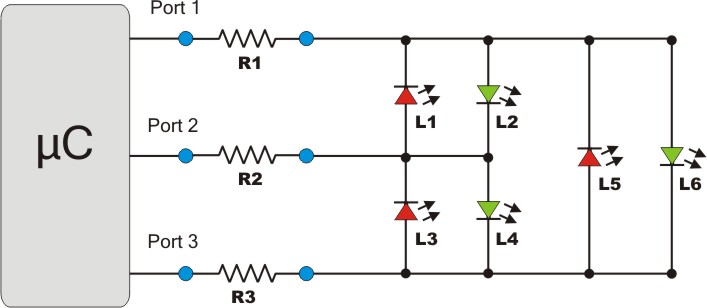
Charlieplexing on an ATtiny85: 3 pins, 6 LEDs

While exploring the world of ATtinys and Arduinos I came to a problem. I needed to control 4 LEDs with only 3 pins. Well this is a problem. I scurried around trying to conceive a clever way to borrow a pin from another application to no avail.

Having previously encountered multiplexing, I turned to that. There I found my solution. Charlieplexing. According to Wikipedia, Charlieplexing uses the tri-state logic capabilities of microcontrollers to control gobs of LEDs with a few pins. The details of Charlieplexing are a bit confusing. I don't feel fully qualified to explain them, so here are the important things to know.

1) An Arduino pin can be in 3 modes: OUTPUT: HIGH, OUTPUT: LOW, or INPUT. When a pin is set as an input, it is put in a high-impedance state. Outputs are in a low-impedance state. If you have no idea what I'm talking about, see THIS link.

2) LEDs (Light Emitting Diodes) only work in one direction. If you did not know this you may have at some
point wondered why your LED was not working. Don't worry. Ignorance isn't a crime...that I know of.

3) Your Arduino (even your ATtiny) can turn LEDs on and off many more times a second than your eye can see. Think how a video shot at 30 frames per second (NTSC TV) looks. That's 30 Hz. A "normal" Arduino runs at 16 MHz (16000000 Hz). Now granted you can't turn an LED on and off that fast, but you get my point. I will be running the ATtiny at 8MHz. This is the fastest you can run it without external hardware.

All this combined means that I can control 6 LEDs with only 3 pins. Great! Next I searched for a library to take care of all the heavy lifting. Introducing the Charlieplex Library. This library takes care of all the tedious stuff to let us worry about what we want the LEDs to do at the Macro level.

I'm not going to go into the details of how to use the library because the Arduino playground page does a pretty good job. However, for those that are interested HERE is my code. It is a basic modification of the SimpleCharlie example to control 6 LEDs.

To the right is a schematic for how to wire up the LEDs. There are also resources available on Google to help you do that. HERE is one resource on how to draw your own schematic. Video would be rather anticlimactic, and I have already disassembled it. The schematic will have to do.


Hope this works for you. 
-Matthew

Friday, June 7, 2013

Arduino Bluetooth with a HC-06 and JY-MCU

With the arrival of my Bluetooth module I decided to give wireless communication another try. I'm glad I did. Setting up my Bluetooth module for wireless communication took less than an hour. While I have not explored it very in depth yet, I can see myself getting some use from this module. It becomes a generic wireless COM port. I have even read about uploading sketches via Bluetooth if you use a custom bootloader. I will probably never delve into that, but let's get started with the basics.

When I first ordered my Bluetooth module, I got a "Bluetooth Serial Transceiver Module Base Board with Enable function For Arduino" from Ebay. I payed a few dollars for it only to realize when I got it that the board was merely a breakout (called a JY-MCU) for another board. Another purchase later, and I had all the things I needed to get going. I got an HC-06 (aka "New Mini 3.3V wireless Bluetooth Transceiver Slave Module Serial Port 30ft TTL"). There is also an HC-05 which apparently is very similar (it seems to share the same pinout).


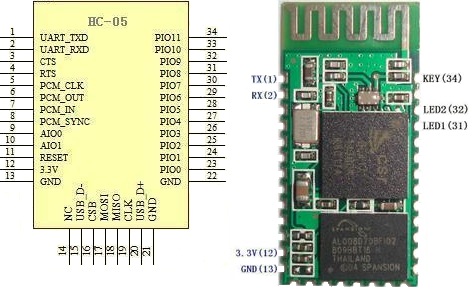
HC-05 pinout
First things first, I soldered my HC-05 onto the JY-MCU. These can be purchased already soldered for less than $10, but the soldering was good practice. I held the module in place with double sided tape and a piece of tape around the end while I soldered it. The contacts aren't too small, but you will need a decent soldering iron with a small tip.
My impressive soldering


Next I wired it up. This is the point where I began calling on the collective knowledge of the internet. Follow THIS Instructable. With a few changes, it is what I did. For the voltage divider I used a 2.2k Ohm and a 1k Ohm + 100 Ohm resistor. It worked fine. I checked it with the volt meter and it came out to about 3.1v. HERE is the voltage divider calculator I used. Be sure you use that on the Bluetooth Rx/ Arduino Tx side or else you could fry your Bluetooth module. The ATmega 2560 will accept 3.3v so the Arduino Rx is fine by itself (sort of. I wouldn't put this on anything too important, but worst you will get false data). Someday I'll get a real logic level converter. For convenience, I used the Serial1 pins on my Arduino Mega 2560.

Now you need to load a test sketch onto your Arduino. I used the one on the Instructable (with Serial changed to Serial1). To do this you will probably need to unplug the Arduino Rx pin. Should we have loaded the program before wiring like the Instructable said? Probably. Oh well. Take this opportunity to double check all wiring and ring them out with a volt meter.

Now we need to connect the HC-06 Bluetooth module to the computer. I am running Windows 7, and this took about 3 minutes. The steps are on the Instructable, but I would feel bad if I didn't post all the screenshots that I took. Power up your Bluetooth module and follow the steps below.

1) Find the Bluetooth Icon in the bottom right hand portion of the screen. Right Click and Select "Add a Device." My device was called linvor. Whatever floats their Chinese boat. The password for mine was 1234. If that doesn't work, try 0000.


2) Go to Devices and Printers and see if it appears. Wait for Windows to install all necessary drivers. note what COM port it is using. Mine uses two apparently.. Oh well. Not worth the energy to worry about it.


3) Download a terminal emulator program. "Can't I just use the Serial Monitor???" No. Only one device can use a serial port at a time. That is why the Serial Monitor shuts down when you upload a sketch. "Then what should I use???" Well I used Tera Term like the Instructable said because it was the least confusing to a simple mind like me. PuTTy and RealTerm are probably more popular choices. I haven't explored them. I'll assume you use Tera Term.

4) Connect to the module in Tera Term. This is super simple. Select the right COM port.


5) Bask in the beauty of the numbers streaming by. 


This took all of an hour for me. I was astonished at how painless it was, especially compared to my struggles with the nRF24L01+. I am not sure what I will do with it now (I have some ideas). I hope you all have the same success I did. If you need the sample sketches for some reason, they are HERE.

Best of luck,
-Matthew


Tuesday, June 4, 2013

Arduino RTC: TinyRTC v1 with Arduino Mega 2560

This post is slightly out of sync with my previous ones. I was digging around in my parts box and found my real time clock (RTC) module, a TinyRTC v1. I then realized that I had not posted any of my findings when I used it. Well I had a few minutes today, so I decided to dust off the RTC and see if it was still working.

A real time clock is something many new hobbyist might take for granted. Living in a world of computers with integrated RTCs and internet connections, it's easy to forget just what it takes to keep track of the time. While any Arduino can give you the time since it's last restart (or pretty close to it anyway). To keep track of the time displayed on your cuckoo clock you will need some external hardware and a continuous power supply. Various people have come up with  good combinations of said hardware, and all you need to do is buy a RTC module.

The module I will be using is a Tiny RTC v1 module. They are commonly found on Ebay called "Real Time Clock DS1307 I2C AT24C32" or similar. Communication is done over an I2C interface. It has a battery on-board that can supposedly last for several years.

I didn't really remember how I set up the RTC, so I started digging around. I found 2 sketches that I picked up from somewhere. I believe the Ebay seller posted them. I tried them out, and they do work as expected. SetRTC sets the RTC with a time you hardcode into the sketch. GetRTC simply displays the time given from the RTC. Both sketches require the Wire library and the I2C address. To find the I2C address, use THIS I2C scanner.

First wire it up. Connect SCL and SDA to the appropriate pins (21 and 20 on the Arduino Mega 2560). Connect Vcc to 5v and GND to GND. Ignore the rest of the pins. To the right is a diagram of the connections for an Uno if you are confused. Next set the time in the function and upload SetRTC to your Arduino. Then hit the reset button at the moment you want to set the clock.

Now we can upload the GetRTC. Open the Serial Monitor and watch the seconds tick by. An interesting note, if you unplug the GND and reattach it, the time gets corrupted, and you will have to reset the time.

Now, while this method works, I would be remiss if did not mention the Time library. It has many other functions that may be useful depending on your situation. I have not explored them, but I assume it works well. To set the time using the library you will need to download Processing. By using a Processing sketch, you can sync the clock's time to that of your computer.

That's all for today. Go forth and make data loggers, binary clocks, and other exciting projects.
-Matthew

Thursday, May 30, 2013

Stepper Motors and Arduino: 28BYJ-48 with ULN2003

Today I will be exploring the world of stepper motors. I recently purchased a 28BYJ-48 stepper motor with a ULN2003 controller. They are available from a host of vendors for a few dollars and seem to be pretty popular in the Arduino community.

Getting started, there are several links you might find useful.

  • Basic information on the motor and controller as well as a sample sketch using the standard Stepper library.
  • The Stepper Library- This is the library that is included with the Arduino IDE. This library is set up to run a stepper without a gearbox, so it would have to be modified.
  • Stepper2.ino- This sketch includes a full set of functions that can be used to run the 28BYJ-48. It is discussed on THIS page, but it appears that the plans to convert it into a "real" library were never implemented. 
  • Custom Stepper Library- This library can be used to control a variety of steppers, but the default settings are for the 28BYJ-48
First I just wanted to get the stepper turning. I found THIS forum thread with some basic code to get it running. HERE is the code. It is very basic and does work. If you read THESE notes and still didn't understand how steppers work. This sketch might clear it up for you. Below is a video of the sketch working. 

Note how it is wired. You don't want to power the stepper from the Arduino. It can pull 90mA which is a lot for your little Arduino. I used my nifty breadboard power supply that I picked up for a few dollars on Ebay. Power goes to the left 2 male pins on the ULN2003 breakout (marked - + 5-12V). The jumper on the right just switches power to the motor. Removing it opens the circuit between the + power supply and the motor. Other than that, just use some female-female jumpers to connect the inputs to the whatever pins you are using on the Arduino. I am using an Arduino Mega 2560 with an Arduino sensor shield v4, so this is very easy to do. For those that don't know, the ULN2003 is just a little Darlington Array that allows us to switch power from an external source on and off rather than using the Arduino's on board power supply.

Next I decided that I would try the Arduino Stepper library first. While Stepper2 looks promising, I wanted something actively supported. Luckily THIS wiki provides code for using the standard library. HERE it is again, saved for posterity. I will note that 4096 steps resulted in 2 revolutions. Also, at the default steps/revolution 300 appeared to be a good maximum speed. 400 would not run at all. When I changed the steps/revolution to 2048, 10 worked well as a max. Another useful thing to know, the clockwise and counter-clockwise directions are defined when looking at the motor from the back (the side with the label). That is, from the perspective I used in the video above it will be backwards. 

If it is not working try some of the things below. If those don't help, Google the problem. If all else fails, comment, and I will see what I can do.
  • Reduce the speed. These motors only turn so fast before they bind up and stop moving.
  • Check the motor's temperature. The top speed of mine seemed to depend a bit on how warm it was.
  • Check wiring. Make sure your Arduino is hooked up correctly and you have defined the right pins in your code.
  • Check the jumper on the ULN2003 control board. It must be in place (bridging the right two pins).
Well that's about all I have at the moment. I have not dug into the other two stepper libraries I listed. I just wanted to do an intro so I could add stepper motors to my robo-arsenal. If I do any projects with them I will post about it.

-Matthew

Monday, May 13, 2013

Arduino: I2C Communication between 2 Arduinos with Wire Library

The next method of communication I will look at is I2C communication. I2C stands for Inter-integrated circuit. It allows one master device to connect to a large number of slave devices using only 2 pins (signal and clock).  The nice folks at Arduino have made this very easy with the Wire library. It is included with the Arduino IDE and is supported on most Arduino boards.

Before we begin you may want to peruse the Arduino website. The Wire library is described HERE and detailed HERE.  When you finish those, let's dive in.

The first thing I did was run the master_reader and slave_sender examples. This was very easy. It sends hello from the slave to the master and displays it on the serial monitor.

Below is a picture of the wiring. It is simple. Wire the SCL pins and the SDA pins together through a pull-up resistor. I used 4k7. A good example can be found at THIS instructable. You also need to connect the grounds of the two boards as well as the vcc. I copied over the diagram for convenience (to the right).

Next I decided to make it transmit something useful. I made an I2C HC-SR04. The slave Arduino constantly takes distance measurements with the HC-SR04 sonar module. The master Arduino can then poll the slave whenever it wants to get the current distance measurement.

Wiring is the same as above. Make sure you use your pull-up resistors. I connected the trigger pin of the sonar to pin 7 and the echo to pin 8, but you could use any of them.


HERE is my code. Hopefully I will have time to rewrite the slave for the ATtiny in the future. That is the plan. Right after wireless communication, robot arm, computer vision..

Matthew

Saturday, May 11, 2013

Arduino: Serial Communication Between Two Arduinos

I wanted to know more about inter-Arduino communication, so I did this project. I want to explore the different ways to communicate with and between Arduinos.

First up is serial communication. This is pretty simple. I expected there to be more hitches, but it turned out to be pretty straight forward. Well let's get to it.

First things first, HERE is the Arduino playground page for serial communication. You might want to read up on the different commands you have there.

Ok, first program. One Arduino transmits one integer every second counting from 1 to 10. The receiving Arduino then prints that number to the COM port where I can see it.  I only have one Arduino with a working USB to serial interface, so I used it as the Rx.

The code is simple enough. You can get mine HERE, but I would encourage anyone to try to write it yourself. It helps, and this is short enough. The only unexpected detail is the parseInt(). I first tried a simple read(). Well that doesn't work because that displays the ASCII character and not the integer value. I had forgotten that.

To wire it up, simply connect Tx (probably pin 1) of the Tx board to the Rx (probably pin 0) of the Rx board. Then connect a common ground between the two. Note that you may need to connect these pins after you load the program on the Arduino (since you are using that pin to communicate with the computer via the USB to serial chip). Leaving them connected caused an error for me. This might be avoided if you put a resistor in between the 2 boards, but I have not tried. By the way, if you're wondering where I got that super cool Tx Arduino, check out THIS post. It was really cheap fun!

Left: Rx                         Right: Tx
Well that was cool. Now I want to go the other way. The next program blinks the LED on the Rx board a specific number of times entered through the Serial Monitor connected to the Tx board.

The code again is not that difficult. HERE is mine. Again, use parseInt() and you're golden.

The wiring is equally simple. It's the same as you just did except in reverse the two boards. In fact, if you had two "real" Arduinos with an FTDI or similar, you wouldn't even need to do that. Just make sure you wire in the common ground as always.

Left: Tx                       Right: Rx

Well that's great and all, but I want to communicate both ways. Next program. This one takes an integer value from a user input through the Serial Monitor and then sends it to the Rx Arduino. The Rx then adds 5 to the integer an sends it back to the Tx. Note that the Tx and Rx labels are a bit arbitrary in this one. It's more of a master-slave relationship.


HERE is my code if you want it.


Wiring is similar to above. However, I used Serial1 on the Tx to communicate with the Rx board. This just kept the USB communication from interfering. This functionality is only available on the Arduino Mega as far as I know (besides 3rd party boards). See the Arduino Documentation linked at the beginning of this post for more details. It's also interesting to note that I noticed I didn't need to power the Rx board for it to work. It would draw power from the Tx pin. That was interesting. I powered it anyway.


Ok.  Last program. This one only uses one Arduino. It allows you to input a word , and it mirrors it back to you. Now this is not all that impressive in itself, but it is still very useful.

There are only a few major changes to the code we have been using. We need to make the variables we use char variables. Also we need to change the parseInt() to a plain read(). Another note, remember that serial is one bit at a time. So if you want to do a line return, you need to handle that yourself. I made it do one every time it saw a period. \n would be more traditional, but that was more work.

HERE is my program. It is pretty simple, but I am not a programmer. If your program is doing anything else you will probably want to use a char string. THIS looks like a good example of this.

Wiring nonexistent. Just connect your Arduino via USB.

That's all I have for now. Hope this was useful! If you want the full package of programs you can get them in zip HERE. Also, if you want to learn about serial communication with an ATtiny (a $2 microcontroller) check that out HERE. If you are looking for something else, try my communication label. There may be something in there that will interest you.

-Matthew

Sunday, April 28, 2013

Using Reset pin as IO on ATtiny85/45 with avrdude and USBtinyISP

Today I'm going to discuss my successful attempt to use the reset pin of my ATtiny45 as an IO and then change it back again. I'm not going to go into a lot of detail because, a) I'm not an expert and b) other people already have. I'll just provide links to the useful pages.

The theory behind this is pretty simple. Basically, you change some fuse bits and the reset pin becomes pin 5. Unfortunately, this means you can't program it with a ICSP (like the USBtinyISP) anymore. You need a High Voltage Serial Programmer that supplies 12v to the reset pin before changing the fuse bits. There are several Arduino forum threads on this out there. Chances are you found those before you found this blog. Now lets get started.

1. You need to get some software. Follow the instructions from Ladyada to install WinAVR

2. You need load a test sketch into your ATtiny with your USBtinyISP or other programmer. I'm assuming you know how to do this. If not go HERE. I used blink with the pin changed to pin 5. If you load it and wire up the LED you shouldn't get any light.

3. Now you need to enable the reset pin as an IO (and thus lose programming capability). This is slightly involved. I recommend you see more instructions from Ladyada. They are very in depth and useful. If you want bare bones you can look below.
  1. Find a fuse calculator. I used THIS one. Select the options you want. I used default with reset disabled. Copy the AVRDUDE arguments.
  2. Open a command window by searching for cmd in the start menu.
  3. Type the commands to set the fuses: avrdude -c [insertyourprogrammerhere] -p [enteryourboardhere] -U [enter the arguments you previously copied here].  Example: If you are using an ATtiny45 and a USBtinyISP like I am (and are extremely lazy), copy and paste this line into the command window:     avrdude -c usbtiny -p attiny45 -U lfuse:w:0x62:m -U hfuse:w:0x5f:m -U efuse:w:0xff:m
  4. Watch and wait. You should get a nice thank you message. You're done.
You're reset pin should be acting like an IO now. If you plug in your LED now, it should blink nicely.

That's great! You know have 6 IO pins at your disposal, but you want to load a new program onto the chip. You need a HVSP. Go forth and Google search. To save you some time here are the cheap options out there.
My Arduino resetter circuit. 
I ended up using the last one, and it does work. All you need is a breadboard, jumpers, 6- 1k resistors, a 2N3904 NPN transistor (I found one on an old cordless phone), and an Arduino. You'll also need some source of 12V. Anyway, you pretty much just follow the instructions on the webpage above. After I discovered the bad jumper I was using, it went smoothly. 


When you finish, the LED on the reset pin should no longer work, but you will be able to program the chip again. This is good. You have successfully reset the fuses.

That's about all I have for this post. I hope you found it useful. Be sure to check out those other websites. They have a lot of good information.

-Matthew
Here's another picture.

Monday, April 15, 2013

Resources for Learning Arduino

I thought I would do a quick post of some of the resources I found useful when I first started messing around with the Arduino.


  1. Arduino Learning Section- As I've watched some other people learn the Arduino system, the two biggest problems I've seen have been not reading the Getting Started section and not reading/knowing about the Learning section. Arduino.cc is your friend. Bookmark it. 
  2. C Programming Quick Reference- I cannot find either the website or the paper copy of the one I used, but this is similar. It was somewhat useful until I found number 3.
  3. Arduino Companion App- Available where apps are sold. Its a free app available for IOS, Blackberry, and Android. I have no idea if there is/will be a version for Windows or Firefox OS. It has all the functions, libraries, datatypes, etc in a nice offline format. I still use it. Also has a built in resistor calculator. Very nice. (most of the stuff from the app can also be found HERE)
  4. Jeremy Blum's Youtube Channel- He also has a website. Most of the Arduino tutorials on YouTube are from him. They are pretty useful. My bumper debouncing circuit (which I don't think I ever got around to mentioning) was directly from his channel.
  5. The Arduino Forum- I haven't personally posted a lot of stuff out there, but there is still a lot of information to be found. If you do need to ask a question, be sure to check out the Sticky sections first. Chances are, you aren't the first person to ask that question, and you want to be sure that you follow posting etiquette. 
  6. Google- 3/4 of the battle is knowing what question to ask. I have a whole tab of bookmarks from all corners of the internet that is full of useful tutorials and forum posts. Also, datasheets are just a click away.
  7. Various Retailers- If you buy generic parts, often the real thing can be found on a retail website like Sparkfun, etc. That can be useful if you need to know what the real specs are.
  8. Various other Apps- I have an Ohm's law app and a few others that I use less often.

That's about all I can think of at the moment. If you have favorite source that I missed feel free to comment or fume privately. Of course, this blog is a source, I'm sure there are others as well.

 Hope you found this list useful
-Matthew

Wednesday, April 10, 2013

Continuous Rotation HXT900

I modified my first HXT900 for continuous rotation, and thought I would type up a quick list of notes.

I used a mixture of the techniques found on THIS webpage and THIS video. I will note that the video was pretty useless, but I did watch parts of it. Anyway, what I learned.

  • Its a pain. Getting the pot centered is about impossible.
  • Don't try to sand down the shaft. It will just get burred up. Instead, enlarge the hole.
  • Get drill bits. Don't try to enlarge the hole with a screwdriver like the video says.
  • You will have to remove any hotglue you put on the front of the shaft after you solder it. The gears won't fit back on if you don't.
  • Replacing the pot with two resistors of equal value does not work. 90 degrees is off-center for the pot. A clever person could figure out what size is required, but I didn't want to do that.
  • Getting the case back on at the end is a pain. Obviously, it is possible though.
That's about it I think. You can test your servo with THIS SKETCH. I used it to find the center of the servos I use on my differential steer robot, ie you may have to tell it to go to 91 to get it to stop instead of 90. It just requires your servo and a 10K pot.

That's all I have at the moment. More to come.
-Matthew